Inside the catalogue

Every font, fully inspected.

Click any font and the Font Detail window opens. Preview the type at any size, toggle every OpenType feature live, recall every pairing this font has earned across past work, browse every glyph, see which of 1,000+ languages it actually supports. The catalogue is just the doorway; the inspection is the work.

Font Detail · Preview
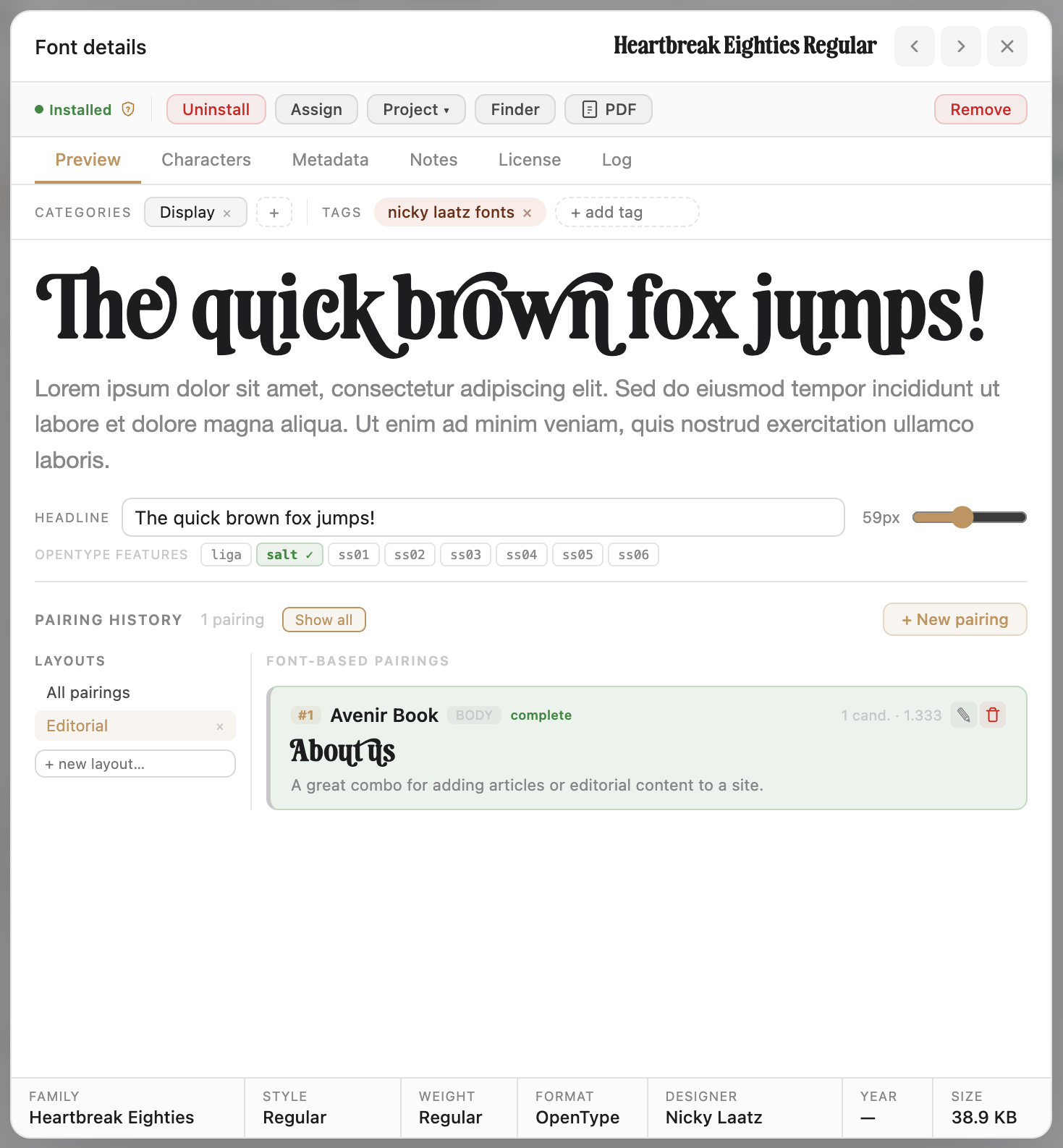
Font Detail Preview tab — a live specimen at the top, a row of toggleable OpenType feature chips below the canvas, and a saved-pairings panel grouped by layout context.

01 · Preview

The Preview tab, where the work happens.

The inspector has six tabs — Preview, Characters, Metadata, Notes, License, Activity — but Preview is the headline act. It’s the live canvas where you actually decide whether a font does the job.

  • Live specimen — adjustable headline size, optional body-pairing font, custom preview text. Sliders update everything live; no commit step.
  • OpenType features, live and toggleable — every feature the font exposes (ligatures, alternates, small caps, oldstyle nums, all 20 stylistic sets, swashes) appears as a chip above the canvas. Click to toggle, see the change instantly. The part of font evaluation other managers skip.
  • Saved pairings, in context — every pairing this font has been part of surfaces here, grouped by layout context, rendered live, ready to recall. Hard-won typography decisions get reused instead of rediscovered.

02 · Glyphs

Every glyph in the file, not just the alphabet.

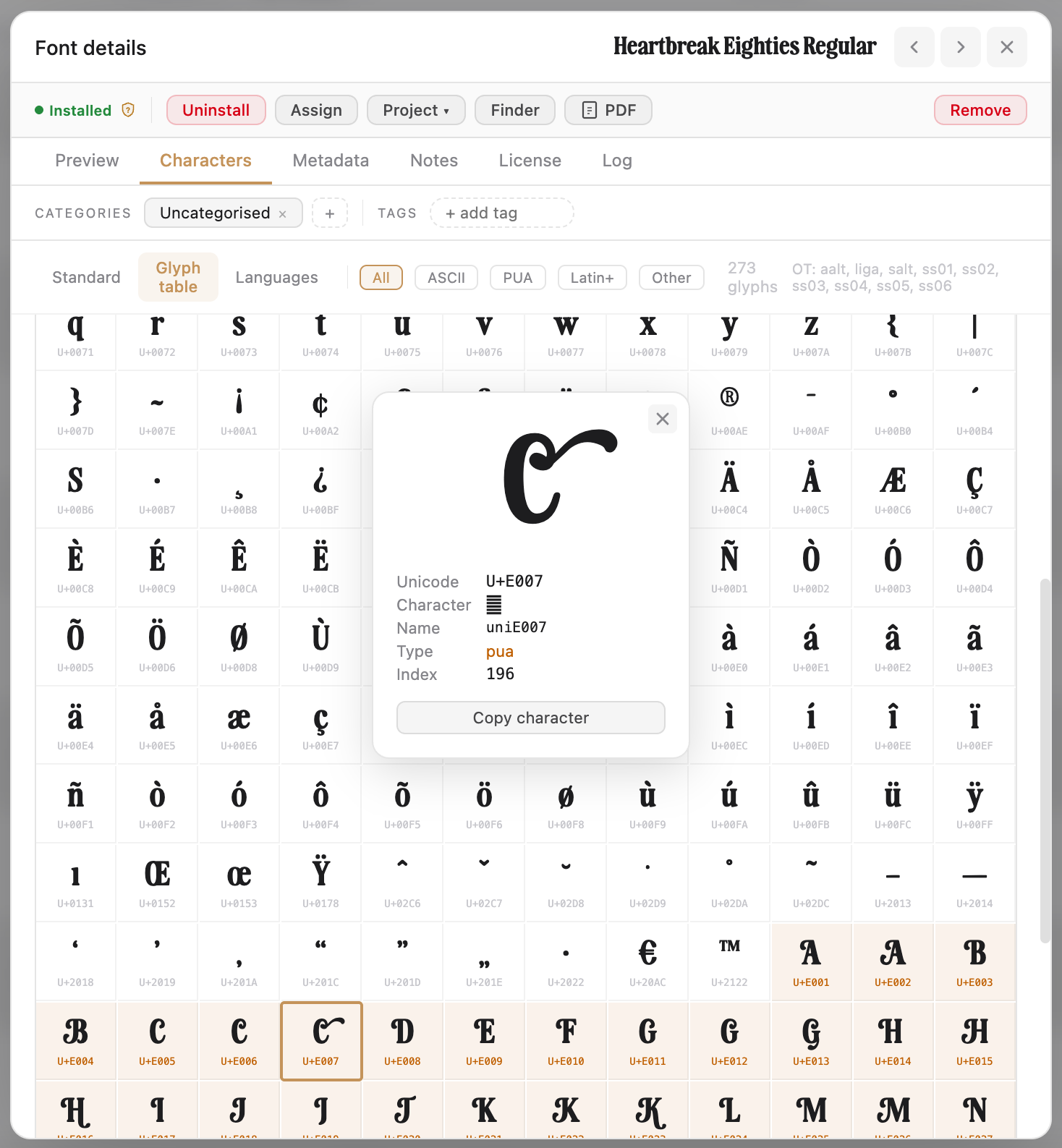
The Characters tab opens onto the full glyph table — standard Unicode, Private Use Area, stylistic sets, alternates, ligatures, the lot. Click any glyph for its Unicode codepoint, glyph name, and click-to-copy. Filter by block, search by name or codepoint, and toggle OpenType features live to see how the rendered text changes.

  • Standard, PUA, and stylistic-set glyphs in one table
  • Filter by Unicode block, search by glyph name or codepoint
  • Toggle OpenType features (smcp, liga, dlig, ss01…ss20, &c.) live
  • Click-to-copy the actual glyph or its codepoint
Font Detail · Characters · Glyph table
Font Detail Characters tab, Glyph table sub-view, with filter controls and OpenType feature toggles.
Font Detail · Characters · Languages
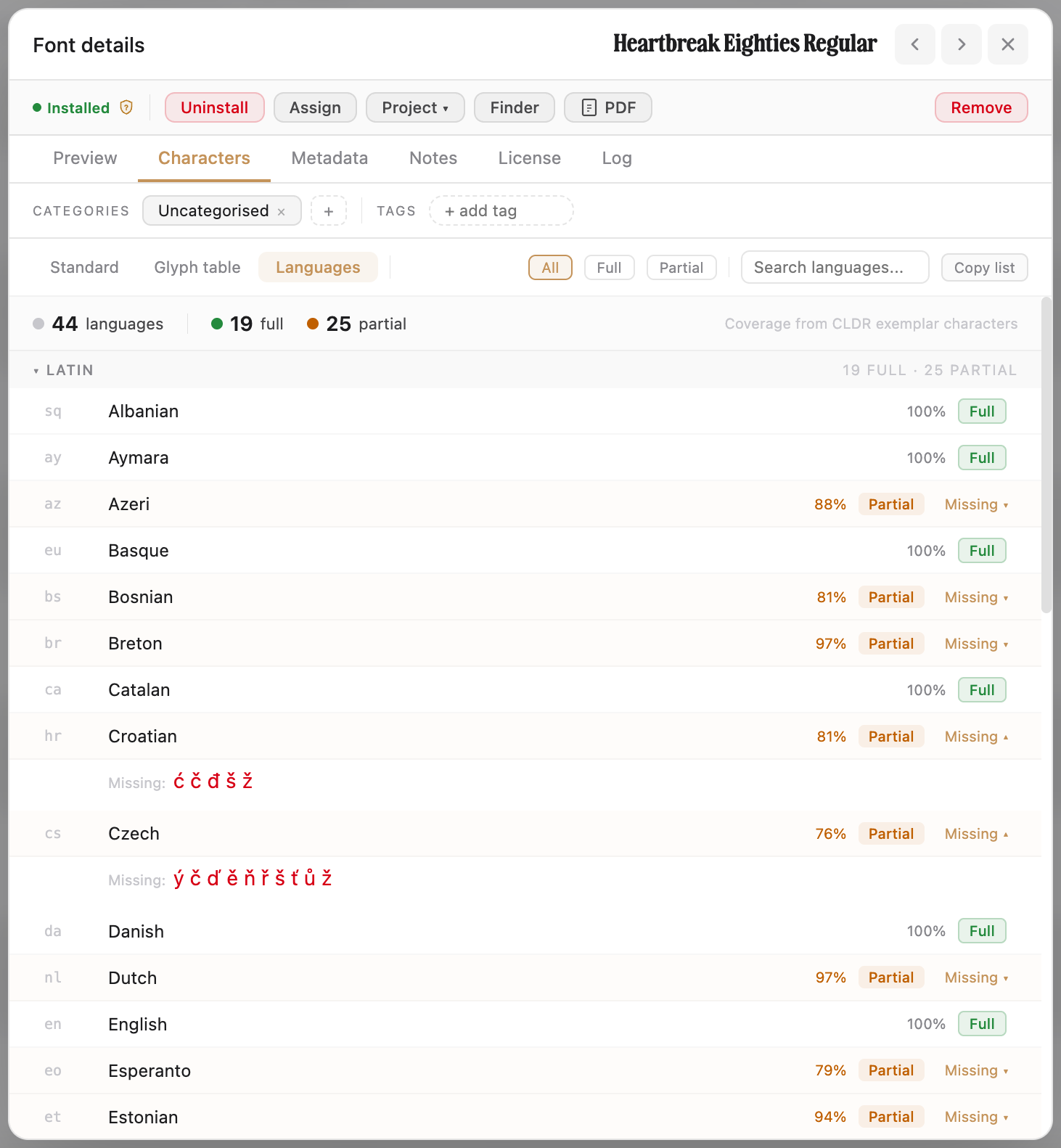
Font Detail Languages sub-tab — CLDR-based coverage analysis, scripts grouped, supported and partial languages listed with missing-character call-outs.

03 · Languages

1,000+ languages, analysed automatically.

Every font is scanned against the CLDR exemplar-character database for over a thousand written languages. Open the Languages sub-tab and FontCurator tells you which ones the font supports — and for the ones it almost does, which characters are missing.

  • Results grouped by script — Latin, Cyrillic, Greek, Arabic, CJK, &c.
  • Coverage status per language — Full, Partial (with %), or Missing
  • Missing characters rendered as the actual glyphs, in red, side by side
  • Per-language clearance status feeds into the project Readiness matrix

04 · Record

Every licence, attached to the font itself.

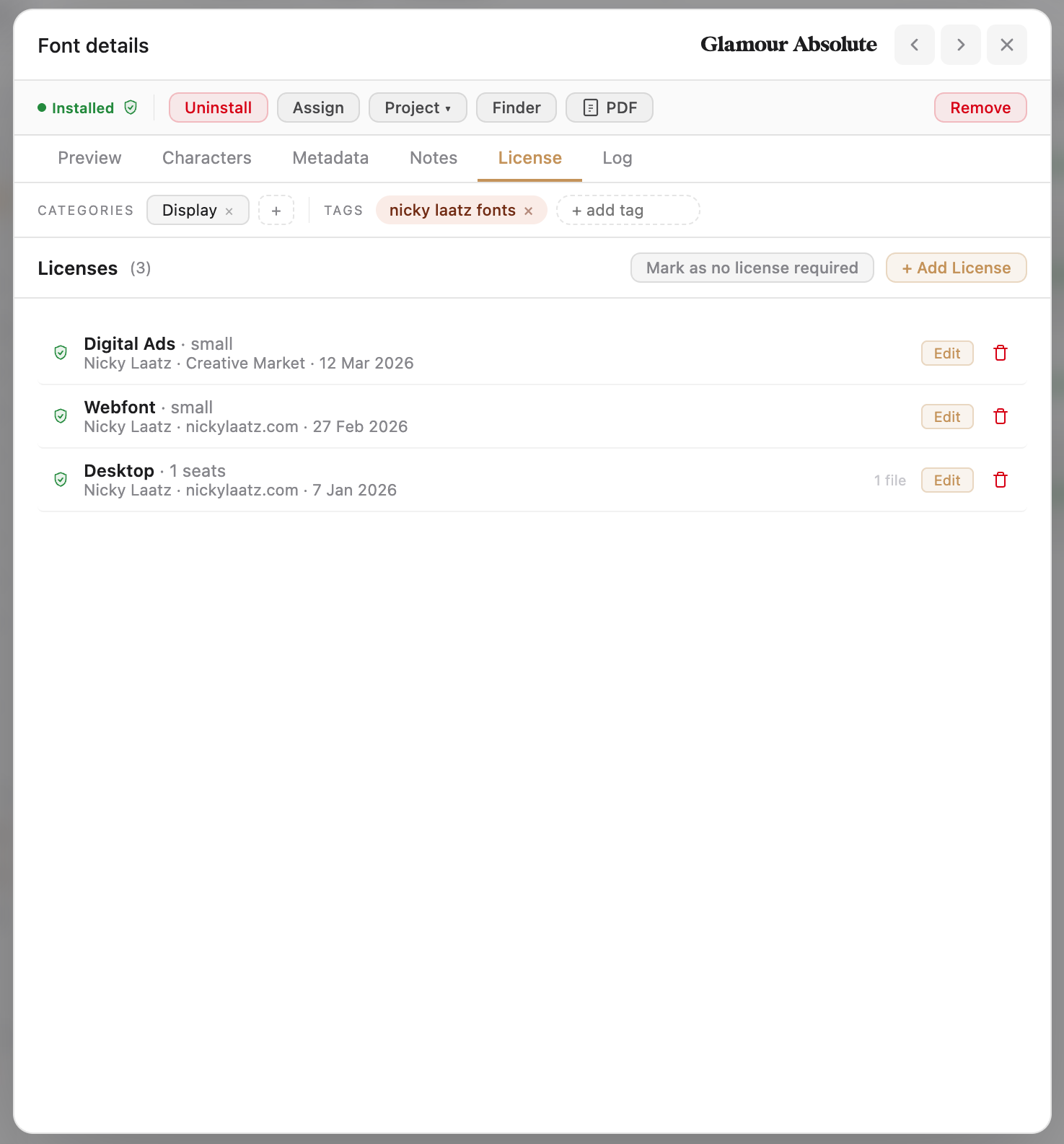
The Font Detail window has a Licence tab. Open it and you see every record you have for this typeface — who you bought it from, when, how many seats, what usage types are covered, with the actual invoice and agreement PDFs attached. Licensing is where every other font manager stops; FontCurator makes it the part you can audit.

  • Type, foundry, source, date, quantity, notes — one record per licence
  • Invoice PDFs, agreement PDFs, foundry confirmation emails attached to the record
  • Files copied into the app’s managed vault — they travel with the database
  • Status badges across the library: green / orange / red / grey at a glance
Font Detail · Licence tab
Font Detail Licence tab — a list of licence records per font, each row showing the licence type as a coloured pill, the foundry, the source, the date, the quantity, and a paperclip count for attached files, with an Add licence button at the top.
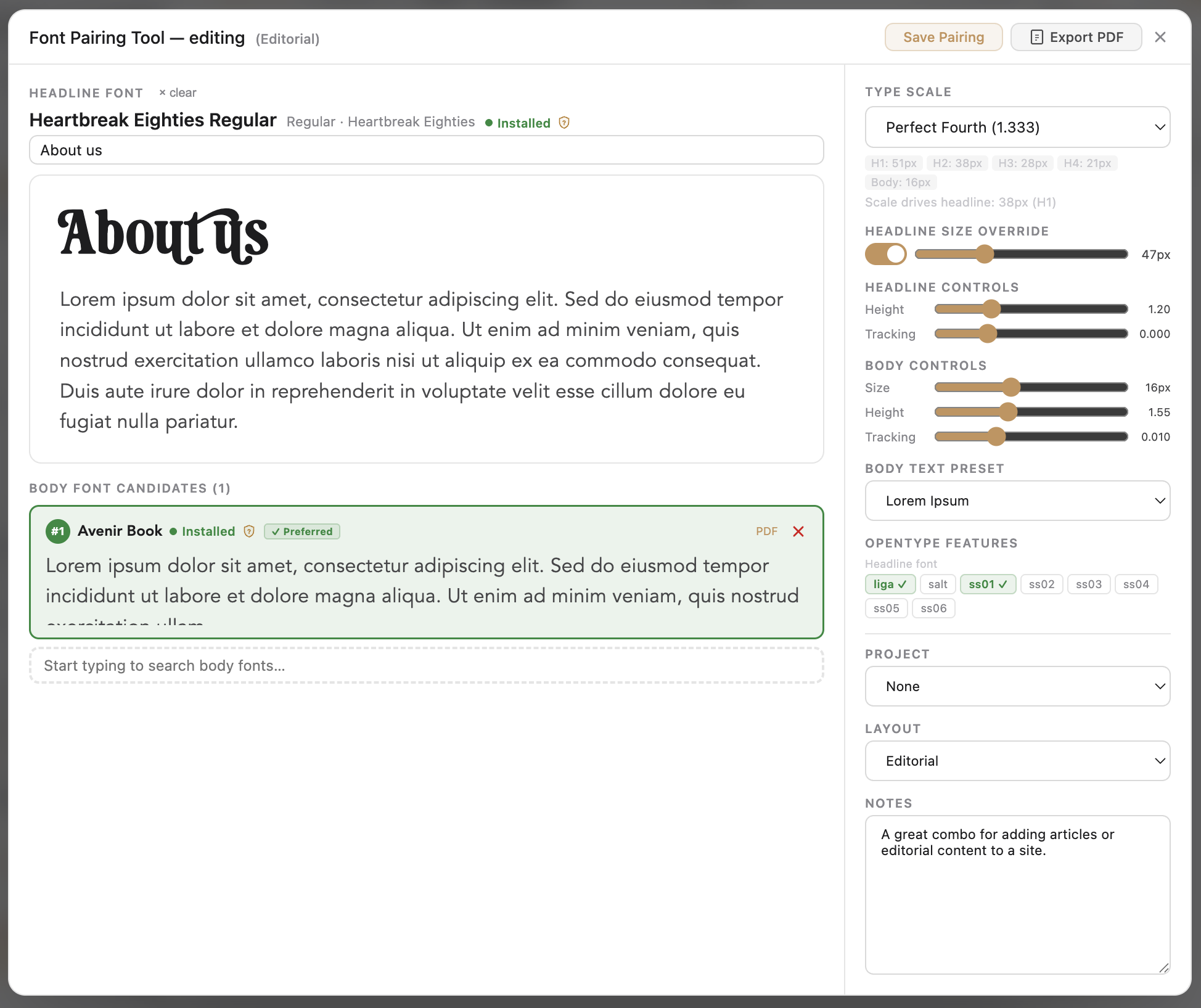
Pairing dialog · Font Detail · Pairings panel
Pairing creation dialog opened from a font's Pairings panel — headline specimen at the top, body-font search and specimen below, size, line-height and letter-spacing controls, custom preview-text field, and a layout-context selector.

05 · Pair

Build pairings worth keeping. Recall them when it counts.

A pairing is a headline font, a body font, the sizes and spacings between them, and the real text that proves they work. FontCurator records that decision on the fonts themselves — not just on the project — so a winning combination is recallable for every engagement that follows.

  • Owned by both fonts — the pairing surfaces from either typeface’s detail view, not buried inside a single project
  • Create from Font Detail — the Pairings panel’s Add button opens a focused dialog with the unified font search, live sizes and spacing, your real preview copy, and a layout-context selector
  • Layout contexts — Hero, Body, Editorial, Navigation, or whatever you name them. Save multiple pairings per context, mark one primary, queue the rest as candidates.

06 · Recall

A decision you made in March — one click away in October.

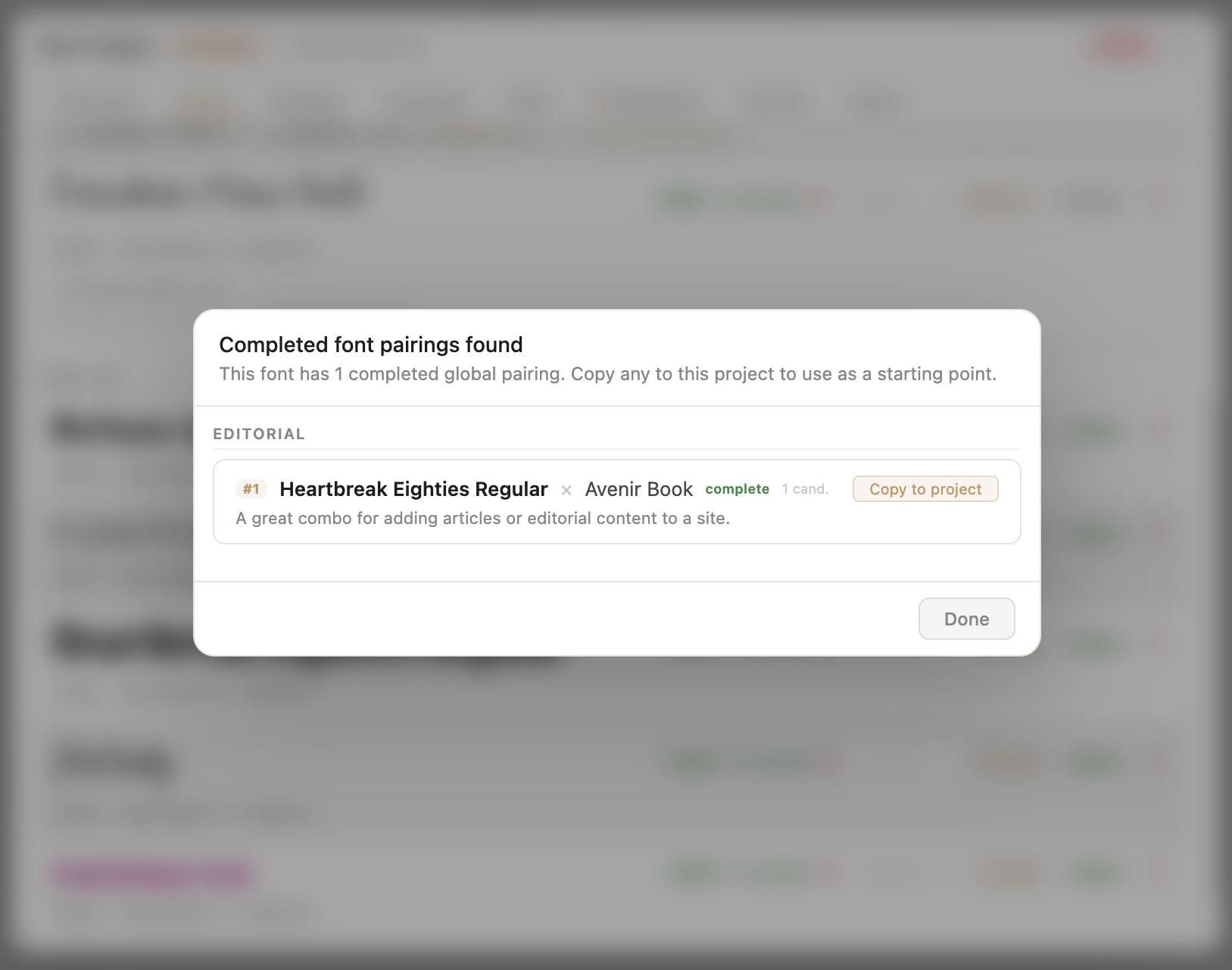
Add a font to a new project and FontCurator checks its pairing catalogue. If it has any, an import dialog offers every one of them — pick which to import, pick which layout context they land in, commit. The pairing work compounds across engagements.

  • Import dialog fires automatically when you add a font with saved pairings to a project
  • Each pairing rendered live in the dialog — you see what you’re choosing
  • Pick which pairings, pick the layout context, one action commits them to the project
  • No reassembly, no “what was that body font I used last time?”
Import pairings on project add
Modal dialog listing every pairing catalogued against the font being added to a project — each entry rendered live with a checkbox and layout-context selector, with an Import Selected button at the bottom.

07 · Find

Search that thinks the way you do.

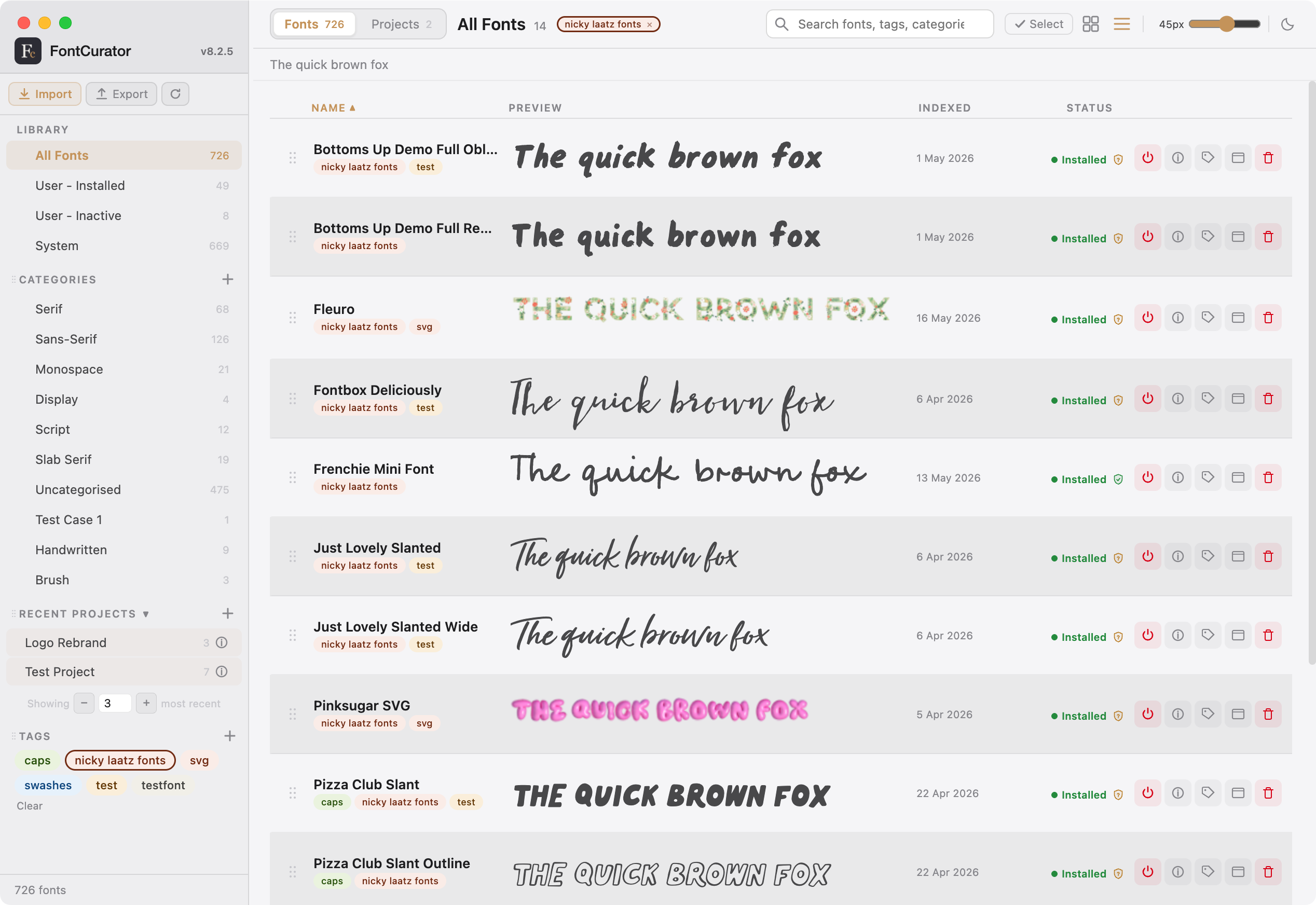
The sidebar holds every facet you’d filter on — category, tag, foundry, format, language coverage, installed state, licensing status. Stack filters; they combine. Save the combination as a smart view if you find yourself running it twice.

  • Categories & tags — the same font in every cut you’d ever make
  • Filter by foundry, format, weight, width, italic, or variable axis
  • Filter by language coverage — "fonts that handle Polish", instantly
  • Smart views save complex stacks for re-use
FontCurator · Library with filters & tags applied
FontCurator library view with sidebar filters and tag chips applied — categories, foundries, formats, and language-coverage facets in context.

Your data, your Mac.

FontCurator stores everything locally — the catalogue, your tags & notes, project clearances, licence records, attached invoice and agreement PDFs. Nothing is uploaded, indexed elsewhere, or held anywhere you can’t reach with Finder. One-click export bundles the lot into a portable archive whenever you want.

Who FontCurator is for.

Freelance typographers and graphic designers with large, growing libraries and many concurrent engagements — the people who carry the licensing and language responsibility on their own shoulders. Small studios, brand and identity designers, type designers, and anyone curating a working library that has to be organised, recallable, and proven.

Ready when you are

Stop hunting through Font Book.
Start curating.